Digital Consents
What is a Digital Consent / Sign Page?
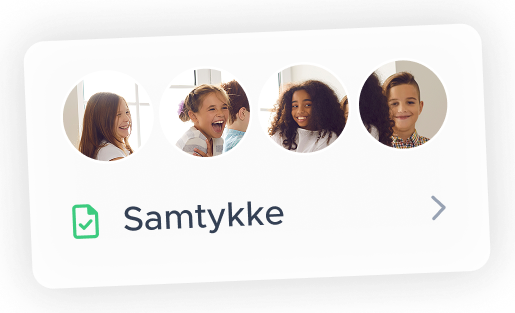
A Digital Consent is a contract generated in Syfish that allows you to collect legally valid consent from the people who appear in your photos or videos. Instead of relying on printed forms, email attachments, or scattered PDFs, the entire process happens digitally, from creation to signature to storage.
The sign page is the page signers see when they open the consent link or scan the QR code. It’s designed to be quick for signers to complete while still making the terms and purpose clear.
What the sign page includes
A typical sign page displays:
- the consent text based on your chosen template
- the purpose for which the images or videos may be used
- required signer fields (name, email, and any additional fields you enabled)
- your company’s privacy policy (if you added the smart tag Issuer Privacy Policy)
- the digital signature field
Everything the signer enters is captured directly inside Skyfish, avoiding incomplete or mismatched paperwork.
What happens after signing
Once the signer completes the form:
- Skyfish automatically inserts the signature into the consent
- the signed consent is instantly returned to your Skyfish account
- the signer receives a copy via email
- the consent becomes available to link to your files immediately
No manual uploads or matching steps are required, as long as your template has been configured correctly.
How to Create a Digital Consent
1. Start a new consent
- Go to “All Digital Consents” or “Created by Me”.
- Click “Create Consent”.
2. Add basic details
- Enter a title (this becomes the Digital Consent’s Project Name).
- Add an optional description for internal reference.
- Select an owner.
- (Optional) Add reference text if your organization uses internal identifiers.
3. Select a template
- Choose the consent template you prepared earlier.
4. Enter the consent purpose
- Add the Consent Purpose (see the separate guidance on how purpose and internal purpose work).
- If the purpose field is required in your template, you must complete it before proceeding.
5. Set the validity period
- Define how long the consent remains valid.
- Skyfish will automatically calculate the Contract Expiry Date based on this setting.
6. Choose signer requirements
Decide which information signers must provide when signing:
- Name (required)
- Email (required)
- Phone number (optional)
- Selfie (optional)
Enable or disable these fields based on your organization’s needs.
7. Save the consent
- Click “Save” to create the Digital Consent.
8. Share the consent with signers
- Share the automatically generated URL or QR code with:
- the signer directly, or
- the photographer (if they are responsible for collecting signatures on-site).
How to Enter “Purpose” into a Digital Consent
The purpose defines exactly what the signer is consenting to. It must be clear, specific, and precise, so both your team and the signer understand how the images or video may be used.
What to Include in a Clear Purpose
Examples of well-defined purposes:
- Use on our own communication channels (website, social media, newsletters, etc.)
- Use in printed and digital marketing materials (posters, flyers, presentations, etc.)
- Use in press coverage and editorial contexts
- Sharing with our commercial partners for use in their marketing, communication, and advertising
Avoid vague descriptions. The more specific the purpose, the easier it is to manage compliant media use later.
Why Purpose Matters in Skyfish
The text entered in the purpose field becomes:
- Searchable in Skyfish
- Visible on all media linked to the consent
- A filter you can use to find images cleared for a particular type of use
To quickly locate images cleared for a specific purpose, include keywords such as “social media,” “internal use,” “marketing,” and search for them in Skyfish later.
How the Purpose Fields Work
There are two potential purpose fields depending on your template setup:
- Purpose for use in the contract (official purpose)
- Purpose for internal use (internal-only purpose)
Which fields appear depends on whether the Consent Purpose smart tag is included in your template.
You will see the field: “For use in the contract.”
This field is mandatory. What happens with this text:
- It appears in the signed contract
- It appears internally on media linked to the consent
- It becomes searchable across Skyfish
Optional: Create a version for internal use
If you choose to add an internal version:
- The contract purpose appears in the signed consent
- The internal purpose appears on linked media
- Useful when consent is in one language (e.g., English) but your team works in another (e.g., Danish), or when internal users need extra detail
2. If the Consent Purpose smart tag is not included in the template
You will only see: “For internal use”
This field is mandatory, because it controls what appears on media linked to the consent. What happens with this text:
- It does not appear in the signed contract
- It appears only on linked media
- It remains searchable, letting you filter files by purpose keywords
How Purpose Impacts Search and Filtering
Skyfish treats the purpose text as searchable metadata.
This means, if your purpose text includes structured keywords such as:
- “Social media”
- “Internal use”
- “Marketing”
…you can later search for those terms to instantly retrieve all files linked to consents allowing that type of use.
Example:
Search for “social media” → Skyfish shows all files linked to consents that include “social media” in the purpose.
How to Share QR Codes and Links to the Digital Consent with a Photographer
Photographers often collect signatures on-site, making it important for them to access the Digital Consent quickly and easily. Skyfish provides several tools that allow you to share the consent with photographers so they can distribute it directly to signers during photo shoots or events.
Sharing the Digital Consent Link
How to share the link:
- Open the Digital Consent you created
- Copy the Consent URL displayed at the top
- Send it to the photographer via email, SMS, chat, or any internal communication tool
The photographer can then forward the link to individuals appearing in the photos.
Sharing the QR Code
How photographers use the QR code:
- Print it for placement at the shoot
- Display it on a phone or tablet
- Add it to signage or clipboards
Scanning the code opens the consent page on the signer’s device.
Using the QR Kit for On-Site Signature Collection
Skyfish also provides a downloadable QR Kit designed specifically for photographers and teams collecting many signatures in the field.
The QR Kit includes:
- A print-ready PDF containing the QR code for on-site or field use
- A sheet of QR codes ready to print as badges (ideal for large shoots, events, or group environments)
This makes it simple for photographers to set up a consistent, professional signing station.
When to use the QR Kit
The QR Kit is especially useful when:
- Many people need to complete the consent quickly
- Individual link-sharing is impractical
- You want scannable badges for photographers, assistants, or participants
- You need an easy, reusable setup for recurring locations or events
What the Photographer Needs to Know
When you share the QR code, QR Kit, or link with a photographer, make sure they understand:
How signers complete the consent
- Signers open the link or scan the QR code
- They fill in required fields (name, email, and any additional fields you enabled)
- They review and accept your privacy policy (if included)
- They sign digitally on their device
What happens after signing
- The signed consent is automatically returned to Skyfish
- No action is required from the photographer
- You can view the consent immediately in “All Digital Consents”
The photographer never handles personal data. They only facilitate access to the consent form.
Best Practices for Photographers
- Place the QR Kit clearly where signers can easily see it
- Print and wear QR code badges for fast access
- Keep the link saved on a phone as backup
- Encourage signers to complete the consent before participating in photos
- Ensure every identifiable person in the shoot has signed
Privacy Statement
Electronic Signatures Using Skyfish
Privacy Statement for those using Skyfish to electronically sign a document.
About Skyfish
Skyfish provides a secure platform that helps organizations manage media and collect electronic signatures in a GDPR-aligned manner. We implement strong privacy and security safeguards and process personal data only on instructions from the organization that issued the document.
Is it safe to sign with Skyfish?
Yes. Skyfish uses a trusted electronic-signature service provider whose technology meets EU requirements for security, privacy, and transparency. This allows organizations to collect Simple Electronic Signatures (SeS) in a reliable and protected way.
Are electronic signatures legally binding?
When you “Swipe to Sign” or “Long Press to Sign,” you create a Simple Electronic Signature (SeS). Electronic signatures can be legally binding under EU law, including Simple Electronic Signatures (SeS). Whether a signature is legally binding depends on the type of document and the laws that apply. You can read more about the legal validity of electronic signatures.
What happens when you sign?
When you sign a document through Skyfish, you agree to use an electronic signature for that document. The data controller (the organization requesting your signature) determines the legal basis for processing your personal data, which may include verifying the signature and maintaining an audit trail. Additionally, any information you enter into the document will be available to the issuing organization and any other signers, in line with the data controller’s configuration of the document.
Who is responsible for your data?
Skyfish acts as a data processor on behalf of the organization that issued the document (the data controller). The data controller decides what data is collected, the purposes for processing, and how long your data is stored. Skyfish processes personal data only according to the controller’s documented instructions, as defined in the data processing agreement.
What data does Skyfish process?
Skyfish may process and store the following information on behalf of the data controller.
- Name
- Email address
- IP address
- Photo (if required by the controller)
- Phone number (if required)
- Any additional personal data entered into the document by you or the controller
- Any content uploaded by the controller and linked to your consent by the controller
Purpose of data processing
Skyfish processes personal data solely to provide the electronic-signature functionality and maintain the signature audit trail, in accordance with the controller’s instructions and our data processing agreement.
Consent withdrawal
If you have given consent to the use of your image or other personal data in the document, you have the right to withdraw that consent at any time. To do this, please contact the organization that issued the document (the data controller). Skyfish cannot process withdrawal requests directly, as we act only on the controller’s instructions.
The data controller also decides how long your data is stored and whether other legal grounds (for example, legal obligations or contractual requirements) mean some information must be kept even after consent is withdrawn.
Document handling
Documents are shown to signers and then packaged into a final signed version that includes verification data and metadata. Skyfish does not extract or analyze document content. All additional personal data contained in documents is determined by the data controller.